

CVCC’s Fire Academy has given me a solid foundation in both the science and strategy behind firefighting. The courses are practical and taught by experienced professionals who understand what it takes in the real world.

_All Element Page Template (Locked Template)
This page template, similar to the Generic Page Template, has all on-page body content and this sub-heading being controlled by custom fields located at the bottom of the page's backend. Scroll down to the bottom to view the Page Content Fields. This page also contains other elments / blocks that are more customized. Instructions on how to use and approach these element are below. This page is meant to be used for more complex pages and contains all the custom elements / blocks that have been built. This will allow you to quickly pick and choose what elements the page contains.
Read Me Instructions
Page Content Fields Instructions:
In the Page Content field you will see a WYSIWYG text editor. This functions similar to a Word Document. I’ve added some general notes on how to use this editor and update different areas of the page below.
- To edit the above “Read Me” heading style, highlight the text and select from the dropdown under “Add Media”. From there you can select from H1 – H6 to control the different typography styles and font-sizes. The heading is currently set to H5. Once satistfied with your edits, Save your changes and update the page to see them live.
- To edit the quick links present in the sidebar, click on the “Reusable Block: General Quick Links”. From the dropdown you can select from any resuable block. Only select ones labeled “Quick Links”. Save your changes and update the page to see them live.
- To edit the contacts per page you will click on the “Grid / Listing” blocks in the sidebar. In the search field, type in the name of the contact you wish to display. Save your changes and update the page to see them live. This is still not complete and is pending the connection with the directory plugin.
- To edit the hero image, click on “Featured Image” to the right. This will open the media gallery and you either select from an exisitng image or you can upload a new image to use. Make sure your image dimensions for this are 1440px by 600px. Also try and use the WebP format to keep the image file size low.
Other Elements / Blocks Instructions:
- You will see this page template contains several other custom elements, blocks and sections present in the backend. The ability to edit content, images, and what is displaying in each element varies.
- The first element you will see is the “Ways to Give” section. This is a full-width image section that has overlaying text and buttons. You can edit the text blocks within the right side to alter the message of this section.
- Then below that is the “Discover Red Hawk Nation” section which contains the video testimonial cards. To change out the videos click on “Grid / Listing” and then in the search field you can type in the video you wish to display. They are in the order by which you select them.
- To edit the indvidual video cards and their content, you must go into the main “Videos” tab on left dashboard menu.
- The News & Events section is automatically displaying the latest 5 news posts based on when they were published and 5 upcoming events based on the date of the event. These cannot be edited unless otherwise specified.
- The “Featured News Post” is controled within the “Grid / Listing” block below the News & Events heading. To select this you click into the block and type in the post you wish featured.
Contacts
Ways to Give?
Did you Know?
Lorem ipsum dolor sit amet consectetur. Nulla ultricies morbi vivamus id nisl. Sagittis non posuere vitae viverra est malesuada cras. Urna vel sit bibendum accumsan lorem.
Discover Red Hawk Nation.
Real stories, real students.
News & Events
News

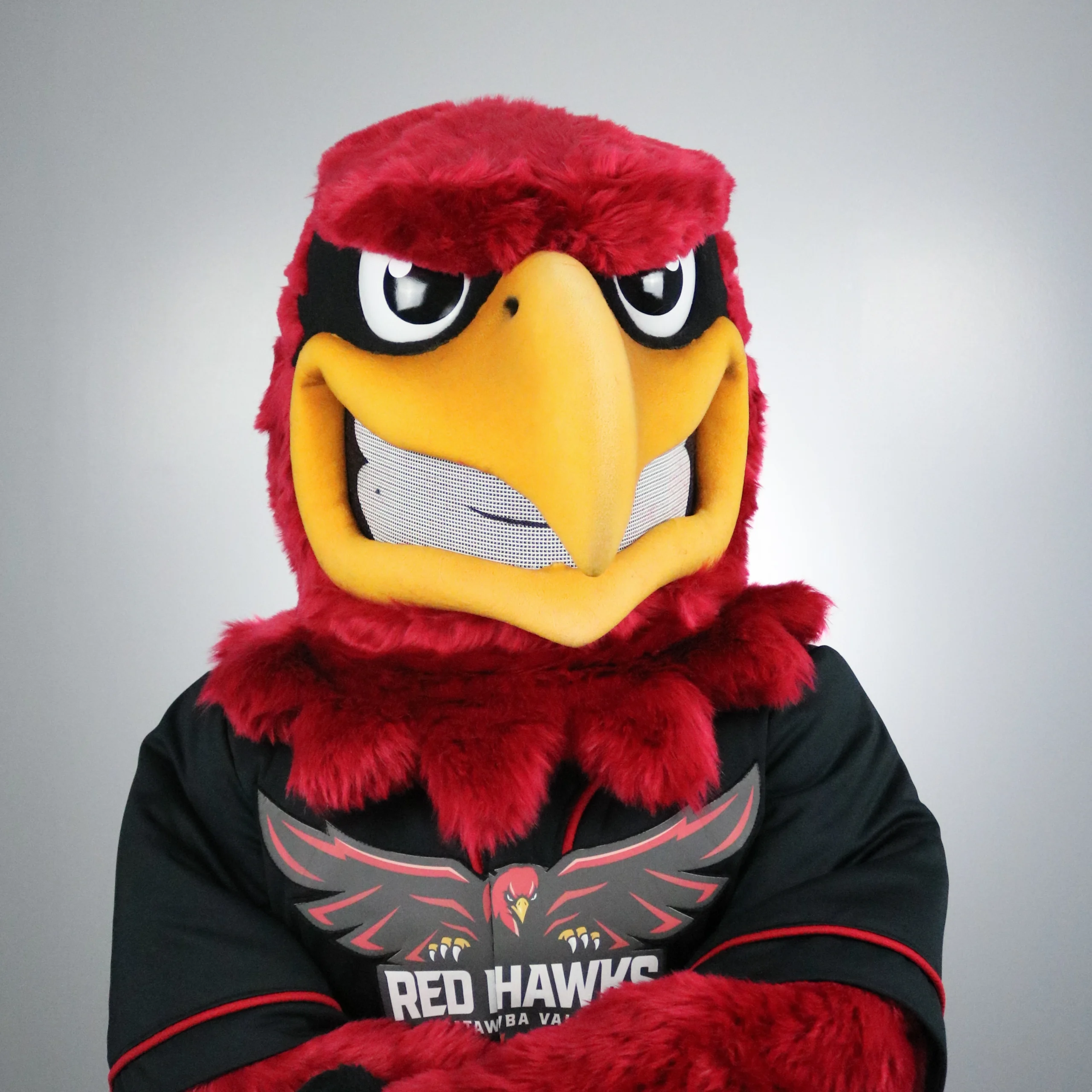
Meet Redgie, the Newest Red Ha…
There’s a new Red Hawk on campus! We’re excited to officially welcome our new mascot to CVCC and introduce a spirited new face for Red Hawk Nation. From campus events and student activities to athletic games and community celebrations, our mascot will help bring even more energy, pride, and Red Hawk spirit wherever we go.
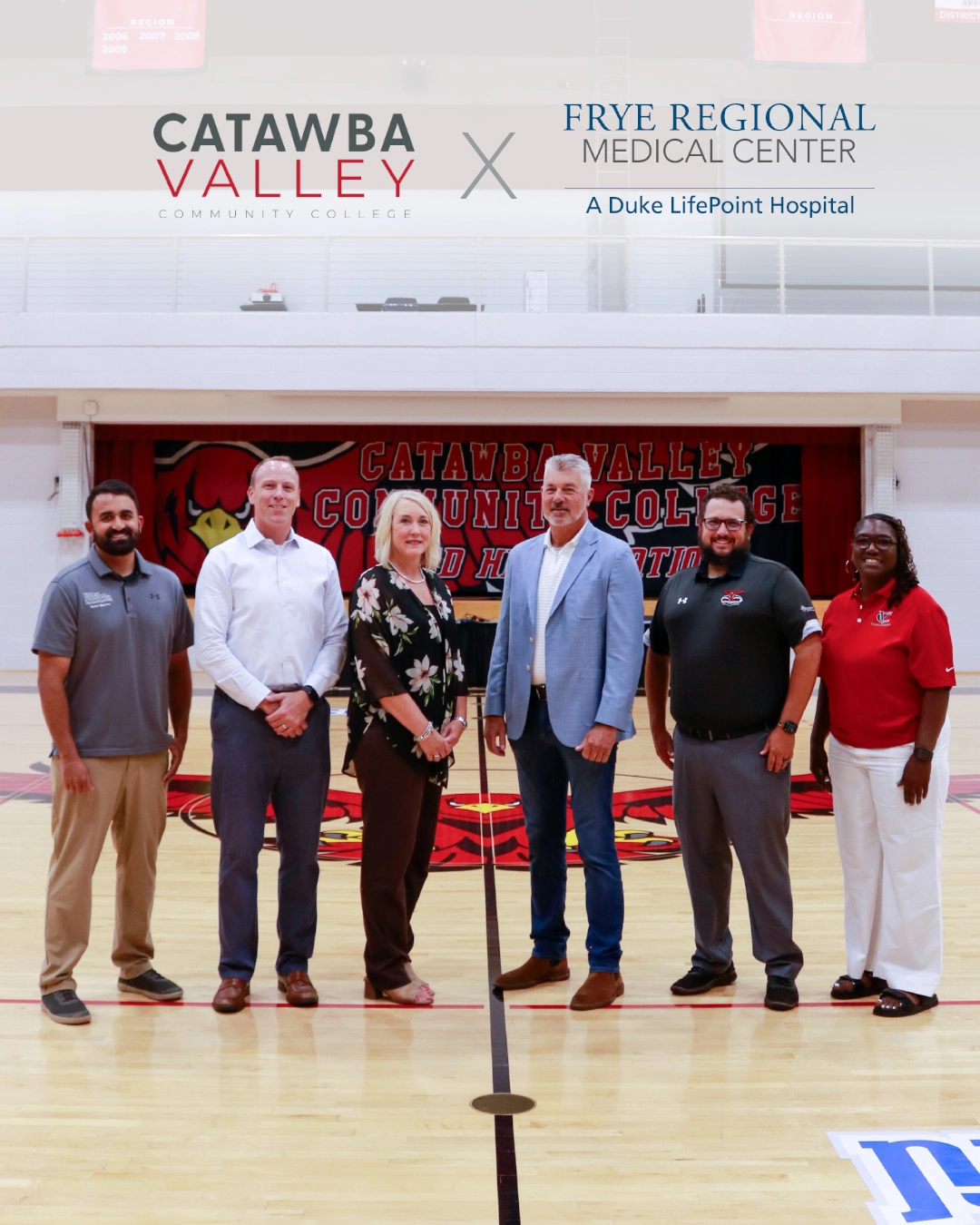
Frye Regional, CVCC Partner to…
Frye Regional Medical Center, a Duke LifePoint hospital, and Catawba Valley Community College (CVCC) have announced a new partnership to provide Red Hawk student-athletes with on-campus athletic training and coordinated orthopedic and sports medicine care, helping them stay healthy, recover safely and perform at their best.
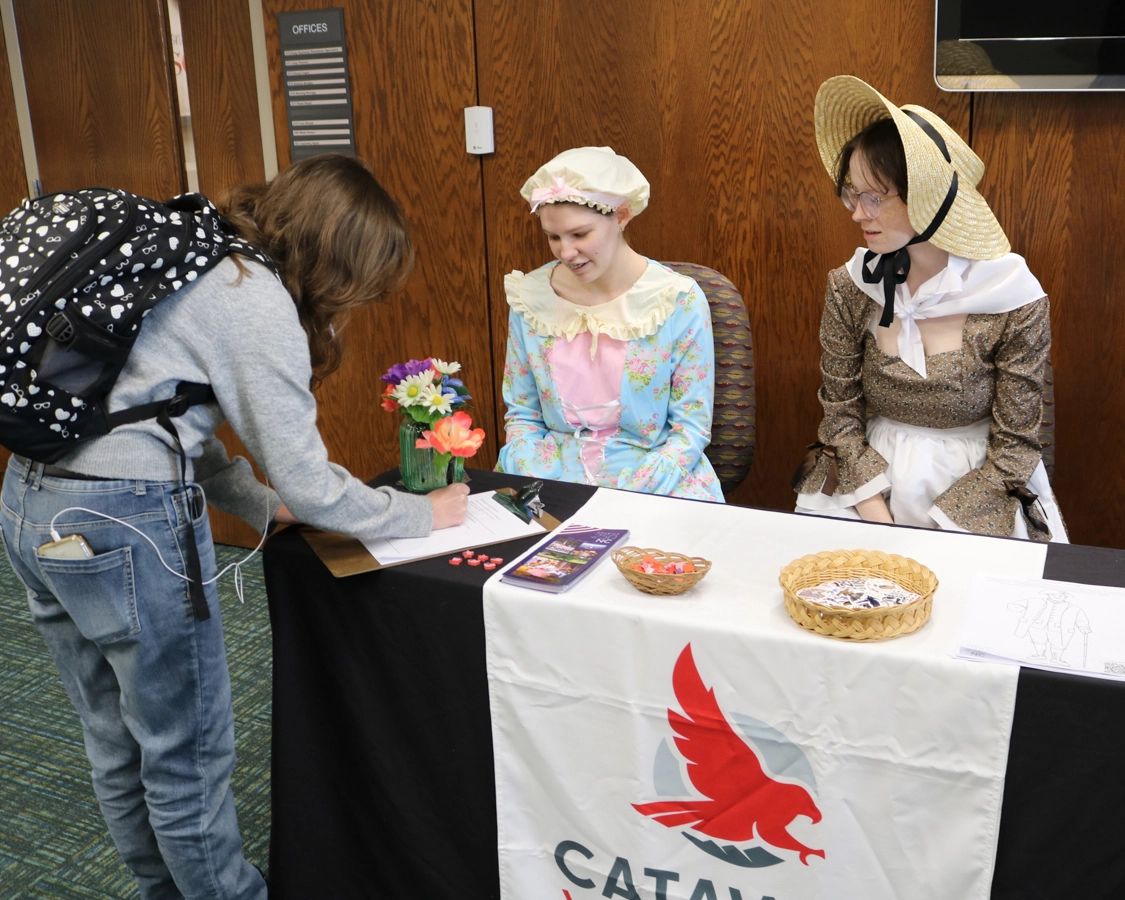
As America approaches its 250th anniversary, CVCC joins the nationwide commemoration through lectures, library activities, and community engagement.
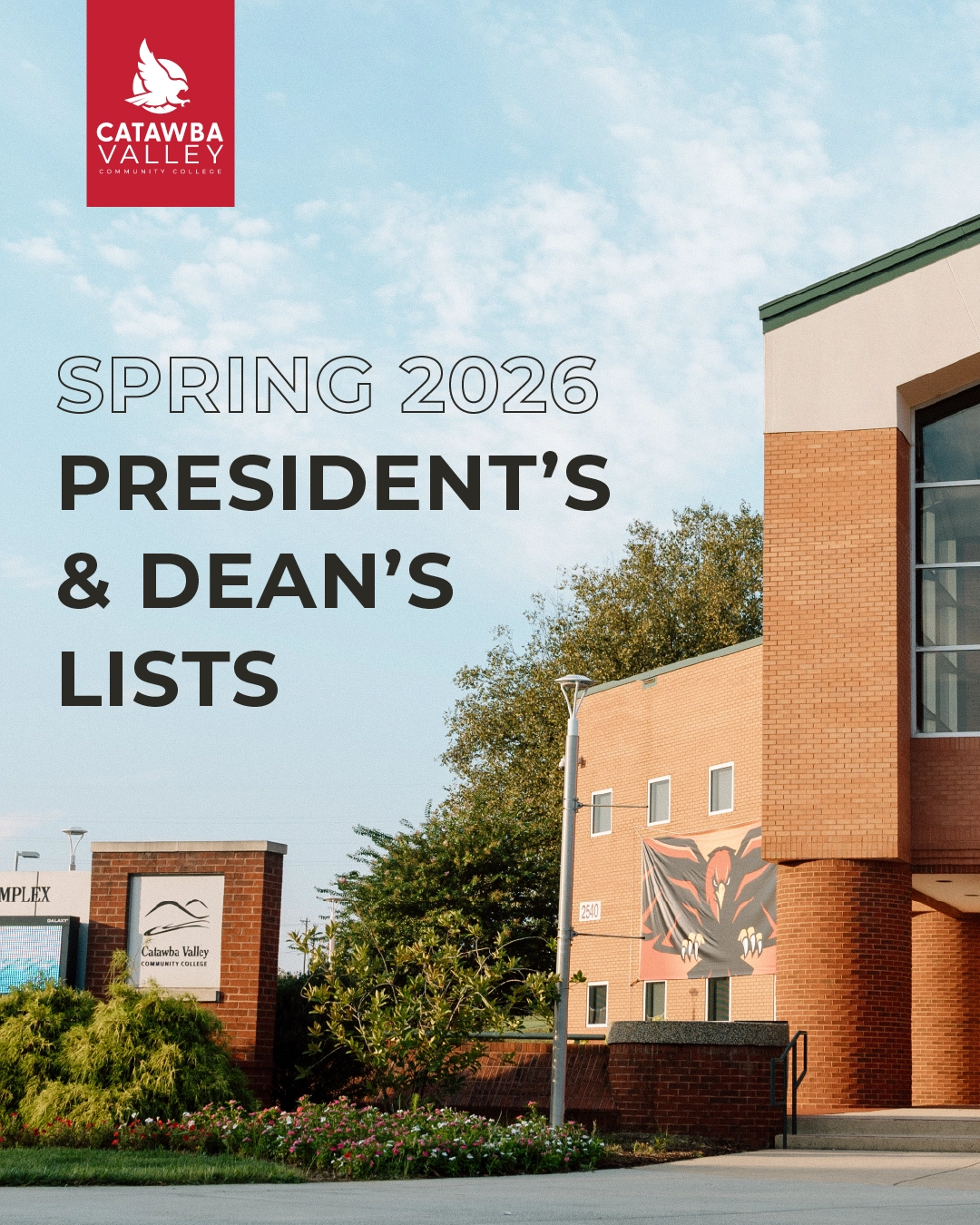
Every semester, Catawba Valley Community College honors the academic excellence of our students through the announcement of the official Dean’s List. To be considered for the List, a CVCC student must maintain a GPA of 3.5 to 3.799 throughout the semester.
Events
Custom Content Carousel

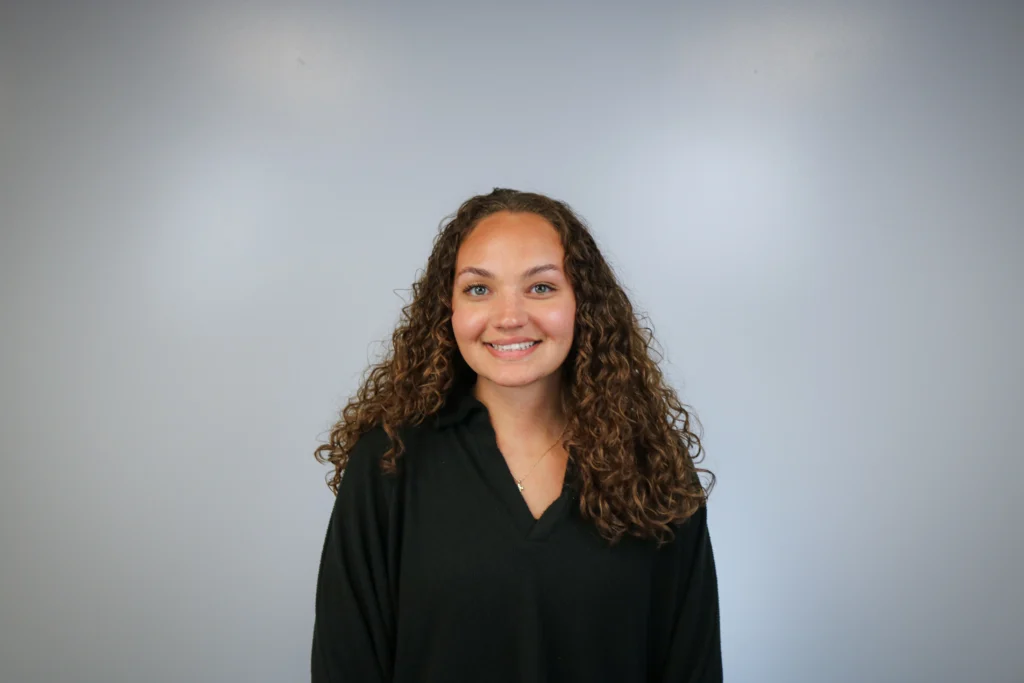



Contacts Carousel
Enrollment Office
(919) 815-5541
ext:
467
E157
HTML Styled Table
Application Schedule and Deadlines
Fall and Summer Semester Enrollment
| Date | Event |
|---|---|
| August 1 | Application opens |
| October 15 | Early Action application submission deadline |
| November 1 | Early Action required materials submission deadline |
| Mid-December | Early Action decisions released |
| January 1 | Regular Decision application submission deadline |
| January 10 | Regular Decision required materials submission deadline |
| Mid-February | Regular Decision decisions released |
| May 1 | Final date to apply |
Spring Semester Enrollment
| Date | Event |
|---|---|
| December 1 | Application submitted and file complete |
TablePress Styled Table
| Date | Event |
|---|---|
| August 1 | Application opens |
| October 15 | Early Action application submission deadline |
| November 1 | Early Action required materials submission deadline |
| Mid-December | Early Action decisions released |
| January 1 | Regular Decision application submission deadline |
| January 10 | Regular Decision required materials submission deadline |
| Mid-February | Regular Decision decisions released |
| May 1 | Final date to apply |
| Date | Event |
|---|---|
| August 1 | Application opens |
| October 15 | Early Action application submission deadline |
| November 1 | Early Action required materials submission deadline |
| Mid-December | Early Action decisions released |
| January 1 | Regular Decision application submission deadline |
| January 10 | Regular Decision required materials submission deadline |
| Mid-February | Regular Decision decisions released |
| May 1 | Final date to apply |